My Haas Welcome,
!
Haas Tooling MyHaas/HaasConnect Sign In Register Haas Tooling MyHaas/HaasConnect Sign Out Welcome, My Machines Latest Activity My Quotes My Account My Users Sign Out
Find Your Distributor
  1. Select Language
    1. English
    2. Deutsch
    3. Español - España
    4. Español - México
    5. Français
    6. Italiano
    7. Português
    8. Český
    9. Dansk
    10. Nederlands
    11. Magyar
    12. Polski
    13. Svenska
    14. Türkçe
    15. 中文
    16. Suomi
    17. Norsk
    18. الإنجليزية
    19. български
    20. Hrvatski
    21. Ελληνικά
    22. Română
    23. Slovenský
    24. Slovenščina
    25. 한국어
    26. 日本語
    27. Українська
  • machines Main Menu
    • Vertical Mills
      Vertical Mills
      Vertical Mills View All
      • Vertical Mills
      • VF Series
      • Universal Machines
      • VR Series
      • VP-5 Prismatic
      • Pallet-Changing VMCs
      • Mini Mills
      • Mold Machines
      • High-Speed Drill Centers
      • Drill/Tap/ Mill Series
      • Toolroom Mills
      • Pocket Mill
      • Compact Mills
      • Gantry Series
      • SR Sheet Routers
      • Extra-Large VMC
      • Double-Column Mills
      • 3+2 Positioning Machines
    • Multi-Axis Solutions
      Multi-Axis Solutions
      Multi-Axis Solutions View All
      • Multi-Axis Solutions
      • Y-Axis Lathes
      • 5-Axis Mills
    • Lathes
      Lathes
      Lathes View All
      • Lathes
      • ST Series
      • Dual-Spindle
      • Box Way Series
      • Toolroom Lathes
      • Chucker Lathe
      • Haas Bar Feeders
    • Horizontal Mills
      Horizontal Mills
      Horizontal Mills View All
      • Horizontal Mills
      • 50-Taper
      • 40-Taper
    • Rotaries & Indexers
      Rotaries & Indexers
      Rotaries & Indexers View All
      • Rotaries & Indexers
      • Rotary Tables
      • Indexers
      • 5-Axis Rotaries
      • Extra-Large Rotaries
    • Special Series
      Special Series
      Special Series View All
      • Special Series
      • EU_Series_Redirect
    • Automation Systems
      Automation Systems
      Automation Systems View All
      • Automation Systems
      • Mill Automation
      • Lathe Automation
      • Automatic Parts Loaders
      • Automation Models
    • Desktop Machines
      Desktop Machines
      Desktop Machines View All
      • Desktop Machines
      • Desktop Mill
      • Desktop Lathe
      • Control Simulator, Standard
      • Control Simulator, Premium
    • Shop Equipment
      Shop Equipment
      Shop Equipment View All
      • Shop Equipment
      • Knee Mill
      • Haas Manual Lathes
      • Haas Saws
    • Fabrication Machines
      Fabrication Machines
      Fabrication Machines View All
      • Fabrication Machines
      • Laser Cutting Machines
      • CNC Press Brakes
    • QUICK LINKS Special Series  Special Series 
      EU SERIES EU SERIES BUILD & PRICE | PRICE LIST BUILD & PRICE | PRICE LIST In-Stock Machines In-Stock Machines WHAT’S NEW WHAT’S NEW YOUR FIRST CNC YOUR FIRST CNC
      SHOPPING TOOLS
      • Build & Price a Haas
      • Price List
      • Available Inventory
      • CNCA Financing
      WANT TO TALK TO SOMEONE?

      A Haas Factory Outlet (HFO) can answer your questions, and walk you through your best options.

      CONTACT YOUR DISTRIBUTOR >
  • Options Main Menu
    • The Haas Control Value Option Packages
      Value Option Packages
      Value Option Packages View All
      • Value Option Packages
    • Product Image Spindles
      Spindles
      Spindles View All
      • Spindles
    • Product Image Tool Changers
      Tool Changers
      Tool Changers View All
      • Tool Changers
    • Product Image 4th- | 5th-Axis
      4th- | 5th-Axis
      4th- | 5th-Axis View All
      • 4th- | 5th-Axis
    • Product Image Turrets & Live Tooling
      Turrets & Live Tooling
      Turrets & Live Tooling View All
      • Turrets & Live Tooling
    • Product Image Probing
      Probing
      Probing View All
      • Probing
    • Haas Chip & Coolant Management Chip & Coolant Management
      Chip & Coolant Management
      Chip & Coolant Management View All
      • Chip & Coolant Management
    • The Haas Control The Haas Control
      The Haas Control
      The Haas Control View All
      • The Haas Control
    • Product Image Product Options
      Product Options
      Product Options View All
      • Product Options
    • Product Image Tooling & Fixturing
      Tooling & Fixturing
      Tooling & Fixturing View All
      • Tooling & Fixturing
    • Product Image Workholding
      Workholding
      Workholding View All
      • Workholding
    • Product Image 5-Axis Solutions
      5-Axis Solutions
      5-Axis Solutions View All
      • 5-Axis Solutions
      • 5 Easy Steps to 5-Axis
    • QUICK LINKS Special Series  Special Series 
      EU SERIES EU SERIES BUILD & PRICE | PRICE LIST BUILD & PRICE | PRICE LIST In-Stock Machines In-Stock Machines WHAT’S NEW WHAT’S NEW YOUR FIRST CNC YOUR FIRST CNC
      SHOPPING TOOLS
      • Build & Price a Haas
      • Price List
      • Available Inventory
      • CNCA Financing
      WANT TO TALK TO SOMEONE?

      A Haas Factory Outlet (HFO) can answer your questions, and walk you through your best options.

      CONTACT YOUR DISTRIBUTOR >
  • Why Haas Main Menu
      Discover the Haas Difference
    • Why Haas
    • MyHaas
    • Education Community
    • Industry 4.0
    • Haas Certification
    • Customer Testimonials
  • Service Main Menu
      Welcome to Haas Service
      SERVICE HOME Operator’s Manuals How-To Procedures Troubleshooting Guides Preventive Maintenance Haas Parts Haas Tooling Videos
  • Videos Main Menu
  • Main Menu
    • View All
    • View All
    • View All
    • View All
      • HTEC Curriculum Support
    • View All
      • Haas 10 kg Cobot Package
      • Cobot Kits
      • DC-1 Drill Center
      • CNC Sales News
      • Do More With Your Haas
    • View All
    • View All
      • contact-us-test
      • 4 - AUTOMATION SYSTEMS
      • Carousel-V2
      • expert test
      • Demo_Day_Trident-test
      • Link Test
      • image-sale-tag-test
      • article-list-test
      • Haas 25 kg Robot Package
    • View All
      • Choose Options
    • View All
    • View All
    • View All
    • View All
    • View All
      • calc-test
    • View All
    • QUICK LINKS Special Series  Special Series 
      EU SERIES EU SERIES BUILD & PRICE | PRICE LIST BUILD & PRICE | PRICE LIST In-Stock Machines In-Stock Machines WHAT’S NEW WHAT’S NEW YOUR FIRST CNC YOUR FIRST CNC
      SHOPPING TOOLS
      • Build & Price a Haas
      • Price List
      • Available Inventory
      • CNCA Financing
      WANT TO TALK TO SOMEONE?

      A Haas Factory Outlet (HFO) can answer your questions, and walk you through your best options.

      CONTACT YOUR DISTRIBUTOR >
  • Haas Tooling Main Menu
  • Haas Service Parts Main Menu

My Haas Welcome,
!
Haas Tooling MyHaas/HaasConnect Sign In Register Haas Tooling MyHaas/HaasConnect Sign Out Welcome, My Machines Latest Activity My Quotes My Account My Users Sign Out
Find Your Distributor
  1. Select Language
    1. English
    2. Deutsch
    3. Español - España
    4. Español - México
    5. Français
    6. Italiano
    7. Português
    8. Český
    9. Dansk
    10. Nederlands
    11. Magyar
    12. Polski
    13. Svenska
    14. Türkçe
    15. 中文
    16. Suomi
    17. Norsk
    18. الإنجليزية
    19. български
    20. Hrvatski
    21. Ελληνικά
    22. Română
    23. Slovenský
    24. Slovenščina
    25. 한국어
    26. 日本語
    27. Українська
×

Search Results

Web Pages

Images

    • <
    • 1
    • >

32 - NGC - Broken Tool Detection

Next Gen Control Electrical - Service Manual


  • 1 - NGC - Introduction
  • 2 - NGC - Activation
  • 3 - NGC - Software Update
  • 4 - NGC - Firmware Update
  • 5 - NGC - Configuration
  • 6 - NGC - Error Report and Backup
  • 7 - NGC - Main Processor
  • 8 - NGC - I/O and TC PCB
  • 9 - NGC - CAN Systems and Autodoor
  • 10 - NGC - Servo Motors and Axis Cables
  • 11 - NGC - 4th and 5th Axis
  • 12 - NGC - Servo Amplifiers
  • 13 - NGC - Vector Drive
  • 14 - NGC - Regen
  • 15 - NGC - 320V Power Supply
  • 16 - NGC - Wye / Delta
  • 17 - NGC - Circuit Breaker and Transformer
  • 18 - NGC - PSUP PCB
  • 19 - NGC - SKBIF and LCD Monitor
  • 20 - NGC - Remote Jog Handle
  • 21 - NGC - 115V LED - WorkLights
  • 22 - NGC - CabCool
  • 23 - NGC - MyHaas
  • 24 - NGC - Networking
  • 25 - NGC - 8M PCB
  • 26 - NGC - Robot and Automation
  • 27 - NGC - Machine Data Collection
  • 28 - NGC - Control Icons
  • 29 - NGC - Sensors and Switches
  • 30 - NGC - USB
  • 31 - NGC - Keypad
  • 32 - NGC - Broken Tool Detection
  • 33 - NGC - IPFDM PCB
  • 34. NGC - LVPS
  • 35 - NGC - Camera Monitor System
  • 36 - NGC - High Intensity Lights
  • 37 - NGC - 24V LED - Worklights

Go To :

  • Broken Tool Detection - Overview
  • Broken Tool Detection - Calibration
  • Broken Tool Detection - Operation
  • Broken Tool Detection - LED Replacement
  • Broken Tool Detection - Camera Replacement
  • Broken Tool Detection - A62 Processor & BTD A62 PFDM PCB Replacement
  • Broken Tool Detection - Troubleshooting Guide
  • UMC - Broken Tool Detection - Installation
  • Broken Tool Detection - Raspberry Pi Replacement
Recently Updated

Broken Tool Detection - Overview


Overview

The broken tool detection (BTD) system captures an image of the tool before and after use. This image is then analyzed to check for any noticeable differences in the tool. When the machine detects a broken tool, the machine will generate an alarm to notify the user and stop the program. The system is intended to be used with drills, taps and endmills. 

Note: The Broken Tool Detection system is not field installable at this time.

The BTD system is made up of:

  1. A62 processor - This is brain of the system that controls and powers the LED lights & camera. 
  2. BTD A62 PFDM PCB - This BTD A62 PFDM PCB receives power from the PSUP and shares it with the A62 processor.
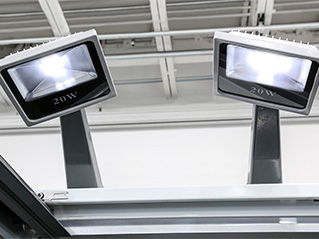
  3. LED lights - These (x2) LED lights illuminate the tool as the camera captures it's image to help detect a broken tool. 
  4. Camera - This camera captures an image before and after a tool is used. This image is then used to compare the height difference in the tool before and after use. 
  5. Camera mounting hardware - This camera mounting hardware attaches the camera and (x2) LED lights to the machine. This hardware also helps to place the camera and (x2) LED lights in the proper position to be able to detect a broken tool accurately. 
Recently Updated

Broken Tool Detection (BTD) - Calibration


AD0702

Introduction

The Broken Tool Detection (BTD) is a feature that detects the length by capturing an image of a tool before and after use. With a noticeable difference in length, an ALARM 9300 Broken Tool will be triggered stopping all machine motion.

Before the system can successfully detect a broken tool, the camera needs to be set up and calibrated. This procedure will show you how to manually adjust the camera mount into the proper position and calibrate the Region of Interest. 

NOTE: For more information on the Broken Tool Detection feature, refer to the Broken Tool Detection - Troubleshooting Guide.

Software Requirements:

  • 100.23.000.1110 version or higher

Calibration

1

IMPORTANT: With the machine in service mode, make sure that Setting 430 is set to ON.

Set Setting 431 Region of Interest to 50% by default. This setting will be adjusted later in the calibration process. 

NOTE: If the machine has a pallet pool, Setting 433 gives the option to skip to the next pallet on a broken tool instead of throwing ALARM 9300 Broken Tool. 

2

Press DIAGNOSTICS.

Navigate to the Maintenance menu and then to the BTD Calibration tab.

Follow the on-screen instructions of engaging [E-STOP] to enter calibration mode.

NOTE: At any time if [E-STOP] is released, it will exit calibration mode and back to the default screen.

Press [F1] to turn on the camera feed on the machine's screen. 

3

Press [F2] to turn on the remote display tab. In this tab, an external device can view the camera feed making the calibration process easier.  

Follow the on-screen instructions of turning off WiFi on the remote device.

Scan the QR code on the remote device. 

You will be then be prompted to join the machine's network. 

Scan the QR code on the remote device again. 

The QR code will refresh to the remote display web page showing the camera's live feed. 

4

With the camera live feed displayed on the remote device, test the camera's feed to ensure it is live.

Do this by turning the work lights [ON/OFF]. The change in brightness will be visible from the video live feed. 

5

Open the machine window on the tool changer side to access the camera. The camera and lights assembly can be adjusted as a whole to ensure proper calibration. 

Set the positioning by slightly loosening the side [1] and top [2] housing screws. 

The side screws [1] allow for forward and backward movement of the camera assembly.

The top screw [2] allows for side to side movement of the camera assembly. 

The pivot screw [3] sets the camera assembly angle. This fine tunes the system.

6

Make sure to view the remote display of the camera live feed while adjusting the screws.

The area within the green lines is known as the Region of Interest (ROI). The tool should be positioned horizontally in the middle of the ROI. The ROI determines how much of the image the system is detecting. 

Position the camera so that the tool holder is shown on the left and the tip of the tool is shown on the right.

 NOTE: The tool holder should be far enough on the left side so that it is only partially visible and ensure that other tool holders aren't within the region of interest. 

Try to align the tool with the ROI centerline.

Make sure that the black brushes are in the backdrop behind the tool in question.  

NOTE: The straightness of the tool within the middle of the ROI directly effects the quality of the tool detection. In order to get the most accurate centerline, use a longer tool.

Once the tool is sufficiently aligned, press [F2] to leave the remote display page. 

7

Press [F1] to display the live camera feed on the machine's screen. 

Adjust the ROI to be able to accommodate different sizes of tools. Make sure that the ROI is wide enough to capture both the tool holder and the tool of the widest tool in the carousel. 

IMPORTANT: If the ROI covers two pockets rather than one, there is potential for the camera to detect the wrong tool. Avoid this. 

Press [PAGE UP] and [PAGE DOWN] buttons to adjust the width of the ROI by one digit at a time OR type a whole number between 1-100 then press [F4] to set that ROI value. 

NOTE: For example, the first image [1] shows the tool with the default ROI of 50%. There is too much extra space surrounding the pocket and tool holder. This caused the ROI to be reduced to 40% in the second image [2]. Now, the ROI is more focused on the tool, while still leaving some extra space to accommodate wider tools. 

8

Once the camera is calibrated, it is time to tell the machine which tools it should detect under the Tool Table. For more information on this, refer to the Broken Tool Detection - Operation reference document to learn how to use this feature. 

Recently Updated

Broken Tool Detection - Operation


RD0013

Introduction

The Broken Tool Detection (BTD) is a feature that captures an image & detects the length of a tool before and after use. With a noticeable difference in length, then ALARM 9300 Broken Tool will be triggered forcing the BTD tab to pop up with before and after images.

This procedure will show how to operate a machine equipped with Broken Tool Detection system.

IMPORTANT: With the machine in service mode, make sure that Setting 430 is set to ON.

 NOTE: For more information on the Broken Tool Detection feature, refer to the Broken Tool Detection - Troubleshooting Guide.

BTD Calibration

The BTD Calibration page can be found under Diagnostic > Maintenance > BTD Calibration. 

This BTD Calibration page is accessible to all. This tab shows a live feed of the BTD camera—either on the machine's screen by pressing [F1] or on the remote display by pressing [F2]. 

When viewing the camera live feed, this page can also be used to set the Value Region of Interest (ROI) Value. This value sets the size of the area for whatever the camera is detecting by pressing [PAGE UP] or [PAGE DOWN]. This detected area is where the tool is expected to be—try aligning the tool with the center ROI line. 

NOTE: It is important to finalize the camera mounting alignment first, before finalizing the ROI Value. To get the default ROI Value, press [ORIGIN] to return back to a ROI Value of 50%. 


Tool Table

The Tool Table page [1] can be found under Current Commands > Tools > Tool Table.

Under the Tool Table, mark the tools that will be checked with the Broken Tool Detection system by pressing [F2]. Now, the Broken Tool Detection will run on those selected tools before and after use such as a G01 with movement.

NOTE: The Broken Tool Detection system only runs during a tool change within a program (M06), not during manual tool changes [ATC FWD].

Note: The BTD Tab [2] under Current Commands > Tools > BTD will only show up when there is a broken tool detected.

Tool Inspection

1

Software 100.25.001.1100 implements tool inspection which takes pictures of the tools once they return to the carousel from the spindle. 

 NOTE: This feature is only compatiable on machines with a 19 inch pendant.

This feature uses the BTD system to activate. 

To activate Broken Tool Detection and Tool inspection, press [SETTING] then search "430".

2

Press the right arrow key to toggle BTD + Tool Inspection [1]. 

Additional information for this setting can be found under the Setting 430 - Enable - Broken Tool Detection page. 

3

The Tool Table page [1] can be found by pressing [CURRENT COMMANDS] then navigating to Tools > Tool Table.

Press [INSERT] to display the image of the selected tool.

Alternatively, select [F2] to capture an image of the tool. 

Pressing [F3] will capture images of all tools, including the tool loaded into the spindle, if applicable. 

4

To display the image of a tool, press [OFFSET] and highlight the desired tool, then press [INSERT] to inspect the tool [1].

5

To change the status of a tool, press [F2]. This will allow the user to manually change the tool status.

 NOTE: The tool must have the BTD box checked under the Tool Table page. 

The tool inspection page may only hold one image at a time. To clear the image, press [F3]. 

6

To save an image of a tool to a USB, press [LIST PROGRAM] and navigate to the USB tab [1]. 

 NOTE: You must have a USB to save captured images. 

7

Press [F4] > Backup Machine and deselect all boxes except Tool Inspection Images [1] by pressing [ENTER].

Press Backup [F4] again to save files to the USB [2]. 

Recently Updated

Broken Tool Detection - LED Replacement


AD0706

Introduction

This procedure will show how to replace the LED lights on the Broken Tool Detection System. 

This procedure should apply to the follow service kits:

  • 93-3813 SVC KIT BTD CAMERA/LED

IMPORTANT: This service kit only includes the LED lights. There is no camera included.

 NOTE: Once the LED lights have been replaced, the camera may need to be re-calibrate to adjust to the new brightness. For more information on the calibration process, refer to the Broken Tool Detection - Calibration procedure.

Replacement

1

Disconnect both LED lights from the +12V LED power cable 33-1228 [1] connecting into J3 on the BTD A62 PFDM PCB.  


2

Follow the LED light cable from the control cabinet around the machine's enclosure panels. Remove the LED light cable. 

3

Remove the (x4) screws securing both LED lights to the broken tool detection brace. 

Remove & discard both LED lights. 

Install the (x4) screws securing both LED lights to the broken tool detection brace. 

4

Route the LED lights cable around the machine's enclosure panels into the control cabinet. Route the camera cable into the group of other routed cables behind the tool changer. 

Install the LED lights cable into the LED lights. 

5

Connect both LED lights from the +12V LED power cable 33-1228 [1] connecting into J3 on the BTD A62 PFDM PCB. 

Recently Updated

Broken Tool Detection - Camera Replacement


AD0707

Introduction

This procedure will show how to replace the camera of the Broken Tool Detection system that captures the before & after image of the tool.

This procedure should apply to the follow service kits:

  • 93-3822 SVC KIT BTD CAMERA ASSY 

Replacement

1

Disconnect the camera cable 79-0159 [1] plugged into the USB adapter 74-2003 that connects into the USB port on the A62 processor. 

2

Follow the camera cable from the control cabinet around the machine's enclosure panels.

Remove the camera cable. 

3

Remove the top screw [1] on the broken tool detection brace. 

Remove the middle screw [2] on the broken tool detection brace.

Remove the last screw [3] on the broken tool detection brace freeing the brace from the camera [4]. 

Remove the camera [4]. 

4

Install the camera [1] into the broken tool detection brace with screw [2].

Install the middle screw [3] into the broken tool detection brace. 

Install the top screw [4] connecting the broken tool detection brace together. 

5

Route the camera cable around the machine's enclosure panels into the control cabinet. Route the camera cable into the group of other routed cables behind the tool changer. 

Install the camera cable into the camera. 

6

Connect the camera cable 79-0159 [1] plugged into the USB adapter 74-2003 that connects into the USB port on the A62 processor. 

7

Once the camera is installed, it is time to calibrate the camera. For more information on this, refer to the Broken Tool Detection - Calibration - AD0702 for more information. 

Recently Updated

Broken Tool Detection - A62 Processor and BTD A62 PFDM PCB Replacement


AD0708

Introduction

This procedure will show how to replace the A62 processor and BTD A62 PFDM board of the Broken Tool Detection system inside the machine's control cabinet. 

This procedure should apply to the follow service kits:

  • 93-3815 SVC KIT BTD A62 
  • 93-4199 SVC KIT A62, BTD NO BRKT

NOTE: Use service kit 93-3815 for machines that do not have an enclosure on the main processor and use a bracket [1] to mount the BTD PCB (machines built before 02/25/2024). Use service kit 93-4199 for machines that have an enclosure on the main processor, the BTD PCB will bolt directly onto the enclosure (machines built after 02/25/2024 with main processor P/N 32-4267 or 32-4269).

Replacement

1

Disconnect all cables connected to the BTD A62 PFDM PCB [1] and the A62 processor [2].

Remove the BTD A62 PFDM PCB [1] from on top of the A62 processor [2].

Remove the A62 processor [2] from on top of the mounting plate [3]. 

Install the new A62 processor [2] on top of mounting plate [3]. 

 IMPORTANT: There is no mounting plate [3] needed for machines built after 02/25/2024 with the enclosed Main controller. The A62 processor [2] is located directly on Main controller. 

Install the new BTD A62 PFDM PCB [1] on top of the A62 processor [2]. 

2

Connect the BTD camera cable 79-0159 into the USB adapter 74-2003 [1] that connects into the USB port on the A62 processor. 

Connect both LED lights to the +12V LED power cable 33-1228 [2] that goes into J3 on the BTD A62 PFDM. 

Make sure that the A62 processor power cable 33-1256 [3] is connected from J26 on the A62 processor to J4 on the BTD A62 PFDM. 

Connect the BTD A62 PFDM cable 33-1227 [4] from J2 on the BTD A62 PFDM to J3 on the MAINCON. This cable also has a pigtail that connects to P20 on the PSUP. 

Connect the communication cable 79-0158 [5] from the mico USB B port on the A62 processor to the USB port J8 on the MAINCON. 

IMPORTANT: Make sure to insert the translator cable into the lower USB port J8 on the MAINCOM.

Recently Updated

Broken Tool Detection - Troubleshooting Guide


TG0039

Revision B - 05/2026

Introduction

The Broken Tool Detection (BTD) is a feature that detects the length & captures an image of a tool before and after use. With a noticeable difference in length, then ALARM 9300 Broken Tool will be triggered forcing the BTD tab to pop up with before and after images. 

For the most accurate results of the Broken Tool Detection feature, make sure the tool is positioned horizontally in the middle of the grid lines on the screen— the Region of Interest (ROI). The ROI value determines how much of the image the system is detecting. 

This troubleshooting guide will explain each alarm and show ways to troubleshoot the Broken Tool Detection system. 

NOTE: To learn more on how to operate the Broken Tool Detection feature, refer to the Broken Tool Detection - Operation reference document for more information. 

Symptom Table

Symptom Possible Cause Corrective Action
Remote display view will not connect with error message saying "Unable to Join Network". The WiFi module got disconnected. Make sure that the WiFi module located on the main control is connected.
False ALARM 9300 Broken Tool detection continues to trigger without a broken tool. The Region of Interest (ROI) Value is set too high and is detecting more objects than just the tool in use.  Reset the ROI value so that the zone only detects the tool in use. Refer to the Broken Tool Detection - Calibration installation procedure for more information. 

(UMC Series Only)

Debris gets through the tool brushes and triggers a false Alarm 9300.

See UMC - Tool Brush Retrofit Kit - AD0794

NOTE: Check valid dates before ordering this kit for your machine.

ALARM 9300 Broken Tool Detection The tool is broken.  See Alarm section below. 
ALARM 9301 Broken Tool Detection Fault

Software Version 100.23.000.1110: There is a hardware issue.

Software Version 100.23.000.1200 or higher: There is a software issue. 

See Alarm section below. 
ALARM 9302 Broken Tool Detection Fault Software Version 100.23.000.1200 or higher: There is a hardware issue.  See Alarm section below. 
ALARM 9303 Broken Tool Detection Software Version 100.23.000.1200 or higher: The control is unable to connect with the camera.  See Alarm section below. 

UMC Machines with Broken Tool Detection

The work lights toggle when exiting the BTD Calibration Tab.
or
The BTD tab disappeared.

The software is out of date. Upgrade to software version 100.24.000.1101 or higher to fix these issues.
Broken Tool Detection page does not display after Settting 430 is set to on. Setting needs to cycle power to display.  Cycle power on the machine.

Alarms

ALARM 9300 Broken Tool will be triggered in the event of a broken tool. 

NOTE: A box will appear around the reference and current tool length. With software version 100.23.000.1110, a green box will appear around the tool. With software version 100.23.000.1200 or higher, a lilac box will appear around the tool with a warning symbol [1].

Due to the alarm, the tool cannot be commanded back into the spindle via M06, but can be commanded back into the spindle via [ATC FWD].

Once the tool is inside the spindle, inspect for breakage and replace as necessary. If the tool is not broken, take an error report [SHIFT] - [F3] of the machine to send to the local HFO. 

The following only applies to Software Version 100.23.000.1110:

ALARM 9301 Broken Tool Detection Fault will be triggered by a hardware issue when the control is unable to communicate with either the A62 board or camera. This alarm will only appear when the program calls for a tool change and the Tool Table is toggled to detect a broken tool, but struggles to find a connection with the BTD system. 

To troubleshoot this alarm, verify that the camera is connected to the A62 board & that the A62 board is connected to the BTD A62 PFDM PCB. Power cycle the machine if the issue continues. 

The following only applies to Software Version 100.23.000.1200 or higher:

ALARM 9301 Broken Tool Detection Fault will be triggered by a software issue. There was an issue with Broken Tool Detection software that resulted in the control not being able to run Broken Tool Detection. 

To troubleshoot this alarm, press [RESET] to continue. Power cycle is necessary. If the issue still persists, then take a [SHIFT] - [F3] and send the results to your local Haas Factory Outlet for further review. 

The following only applies to Software Version 100.23.000.1200 or higher:

ALARM 9302 Broken Tool Detection Board Communication Lost [1] will be triggered by a hardware issue when the control is unable to communicate with the A62 board or when the A62 board is faulty. 

To troubleshoot this alarm, verify that the A62 board is connected to the PFDM PCB properly. Make sure that the A62 board cable functions as excepted. Power cycle the machine if the issue continues. 

Updated

The following only applies to Software Version 100.23.000.1200 or higher:

ALARM 9303 Broken Tool Detection Camera Communication Lost [1] will be triggered by a hardware issue when the control is unable to communicate with the camera or when the camera is faulty.

To troubleshoot this alarm, verify that the camera is connected to the A62 board and that the A62 board is connected to the PFDM PCB. Use T-150 Cable Tester tool to make sure that the camera cable functions as excepted.  Refer to the Haas Cable Tester Kit – Instruction procedure.

Power cycle the machine if the issue continues. 

Electrical Diagram


The BTD camera cable 79-0159 connects into the USB adapter 74-2003 [1]. The adapter [1] then connects into the USB port on the A62 processor. 

Both LED lights connect to the +12V LED power cable 33-1228 [2] plugged into J3 on the BTD A62 PFDM. 

The A62 processor power cable 33-1256 [3] connects from J26 on the A62 processor to J4 on the BTD A62 PFDM. 

The BTD A62 PFDM cable 33-1227 [4] from J2 on the BTD A62 PFDM connects to J3 on the MAINCON. This cable also has a pigtail that connects to P20 on the PSUP. 

The communication cable 79-0158 [5] connects from the micro USB B port on the A62 processor to the USB port J8 on the MAINCON. 

IMPORTANT: Make sure to insert the translator cable into the lower USB port J8 on the MAINCOM.

Recently Updated

UMC - Broken Tool Detection - Installation


AD0859

Revision D - 8/2025

Introduction

Updated

This procedure explains how to install the Broken Tool Detection Camera on UMC machines.

Machine Compatibility:

Important: UMC machines built before August 2023 — this option is not field installable.

  • UMC-400/SS
  • UMC-500/SS
  • UMC-750/SS
  • UMC-1000/SS/P
  • UMC-1250/SS
  • UMC-1500/SS/DUO

This procedure applies to the following service kits:

  • 93-1001218: BROKEN TOOL DETECTION FIELD KIT UMC-500
  • 93-1001219: BROKEN TOOL DETECTION FIELD KIT UMC-1250
  • 93-1001220: BROKEN TOOL DETECTION FIELD KIT UMC-400
  • 93-1001221: BROKEN TOOL DETECTION UMC750/1000/1500

Installation

1

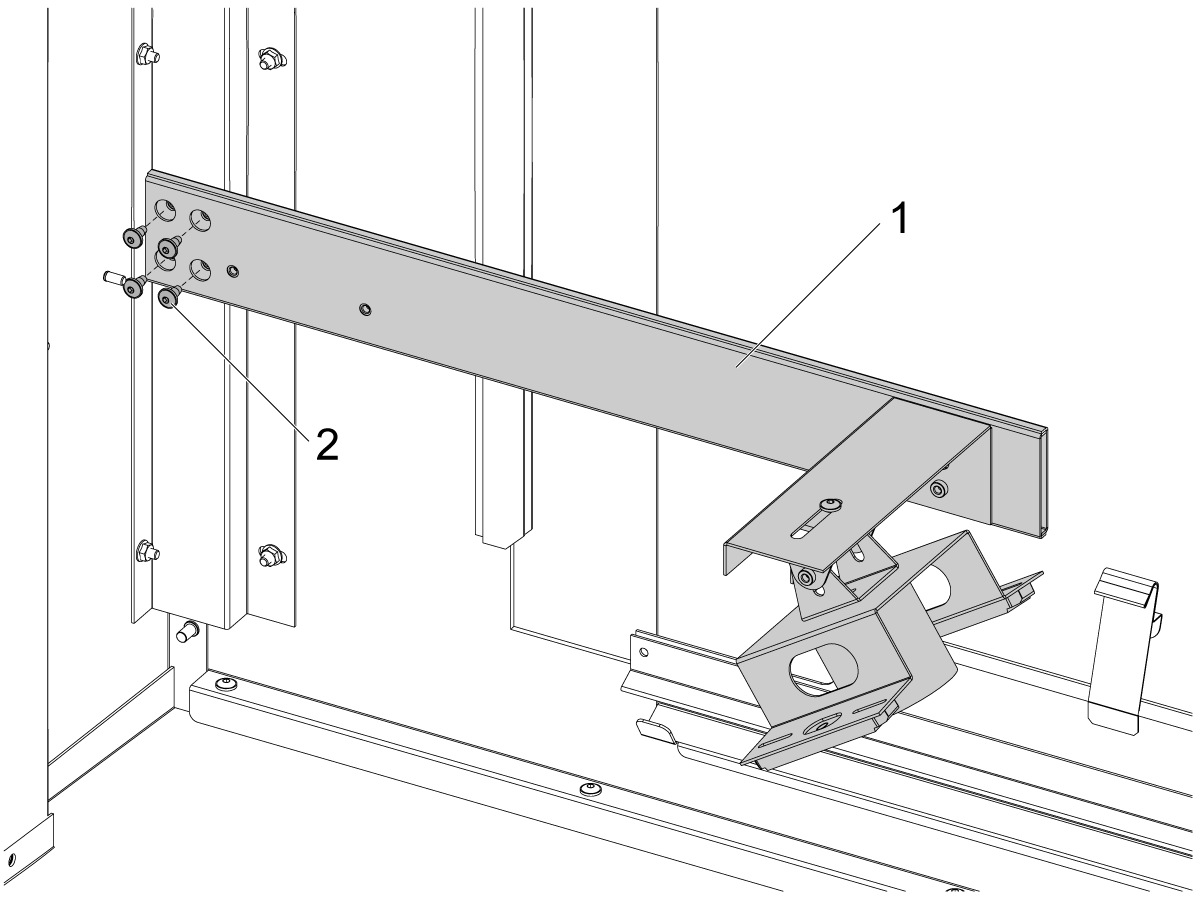
Secure the brace [1] to the inside of the corner of the enclosure near the tool changer.

Install the brace with six 1/4"-20 flange nuts [2].

2

Install the broken tool detection sub-assembly [1] by securing it with four 1/4"-20 X 1/2" flanged button head cap screw (FBHCS) [2] to the brace.

Apply a small amount of loctite on the threads of the screws.

3

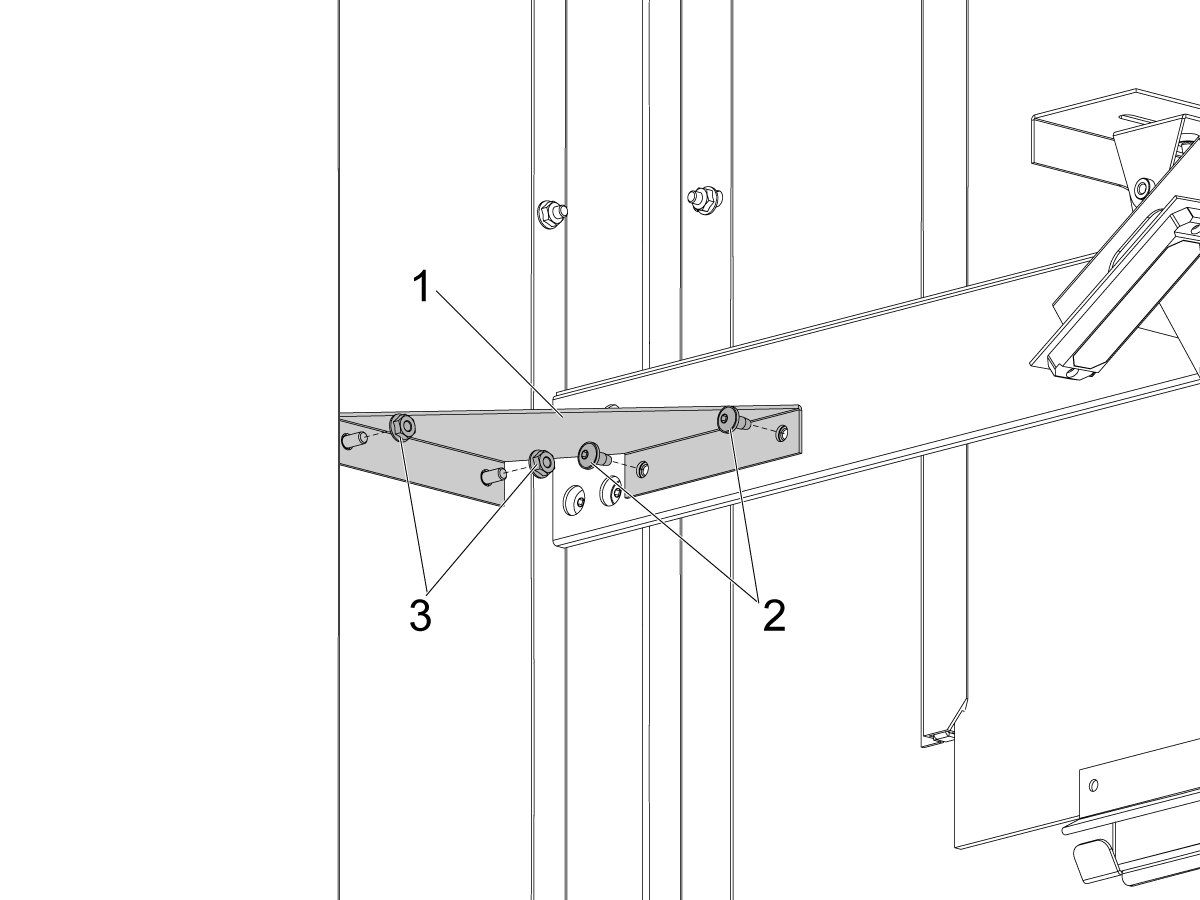
Install the end brace [1] to the inside of the enclosure using two 1/4-20 flange nuts [3] and to the brace with two 1/4"-20 X 1/2" FBHCS [2].

Apply a small amount of loctite on the threads of the FBHCS.

 NOTE: UMC-500s do not use this bracket and skip this step.

4

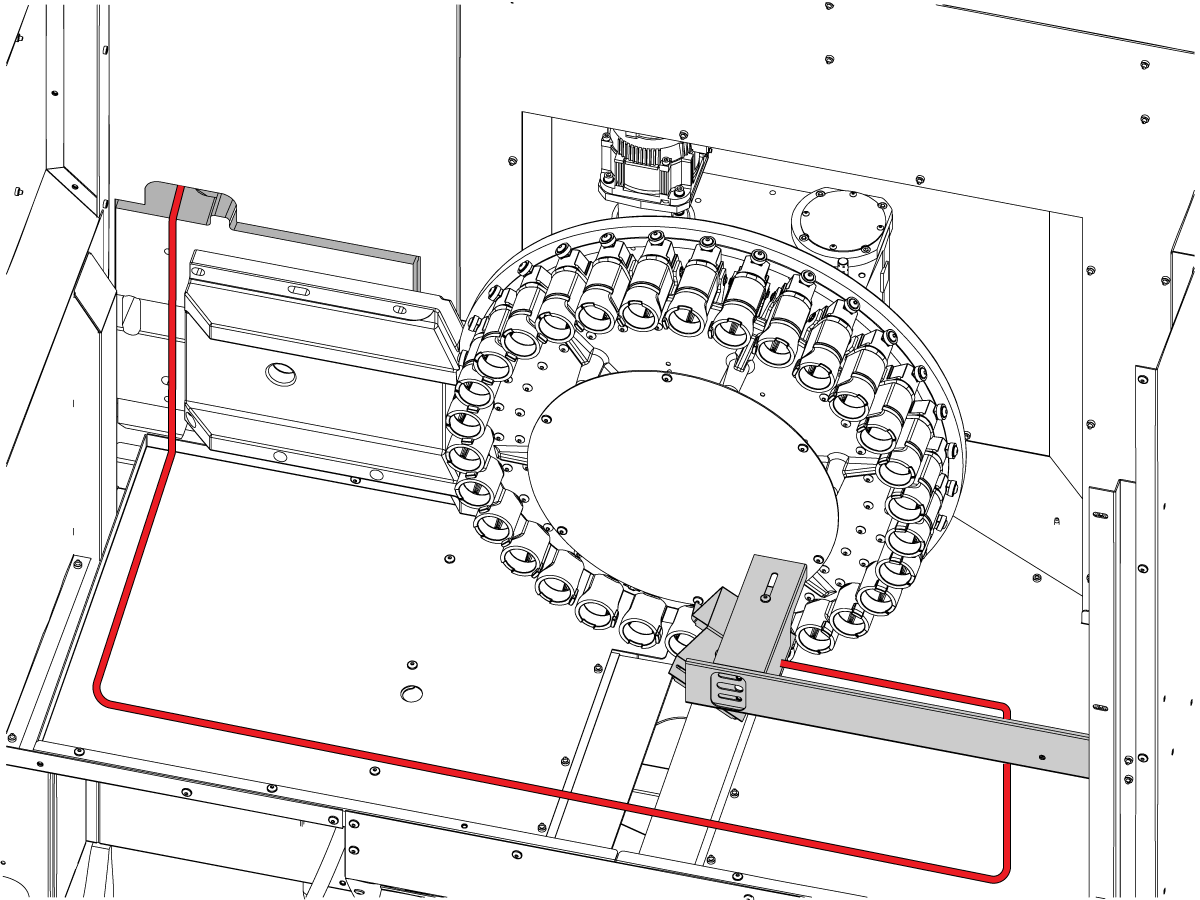
Route the BTD cables around the machine's enclosure panels into the control cabinet. route the camera cable into the cable magnets and spiral wrapping closest to the window. 

Install the camera cable into the camera. Use the velcro to hold the cables together.

A62 Processor & A62 PFDM PCB Assembly

1

 NOTE: For machines built before February 25, 2024 that do not have an enclosure on the main processor, use the provided bracket [3] from the service kit to mount the BTD PCB.

Install the A62 processor [2] on top of the mounting plate [3].

Install the BTD A62 PFDM PCB [1] on top of the A62 processor [2].

 NOTE: The battery on the A62 processor is not replaceable. 

2

 NOTE: For machines built after February 25, 2024 with main processor P/N 32-4267 or 32-4269, the BTD PCB bolts directly onto the enclosure [2]. Discard the bracket for these machines.

Install the BTD A62 PCB [1] on top of the processor [2].

 NOTE: The battery on the A62 processor is not replaceable. 

3

Connect the BTD camera cable 79-0159 into the USB adapter 74-2003 [1] that connects into the USB port on the A62 processor. 

Connect both LED lights to the +12V LED power cable 33-1228 [2] that goes into J3 on the BTD A62 PFDM. 

Make sure that the A62 processor power cable 33-1256 [3] is connected from J26 on the A62 processor to J4 on the BTD A62 PFDM. 

Connect the BTD A62 PFDM cable 33-1227 [4] from J2 on the BTD A62 PFDM to J3 on the MAINCON. This cable also has a pigtail that connects to P20 on the PSUP. 

Connect the communication cable 79-0158 [5] from the mico USB B port on the A62 processor to the USB port J8 on the MAINCON. 

 IMPORTANT: Make sure to insert the translator cable into the lower USB port J8 on the MAINCON.

Add 64-1252 Ferrite filter to the USB extender 74-2003 where it connects to the A62 board.

Calibration

Before the system can successfully detect a broken tool. the camera needs to be set up and calibrated. 

Follow the calibration procedure which will show you how to manually adjust the camera mount into the proper position and calibrate the Region of Interest.

Recently Updated

Broken Tool Detection - Raspberry Pi - Replacement


AD0942

Revision A - 03/2026

Introduction

This procedure will show how to replace the Raspberry Pi PCB of the Broken Tool Detection system inside the machine's control cabinet. 

This procedure should apply to the follow service kits:

  • 93-5722: SERVICE BTD RASPBERRY ASSY 

Note: This service kit is for machines with the 19" monitor. The minimum required software version for this is 100.25.001.1300.

Replacing Raspberry Pi

 Caution: When you do maintenance or repair on CNC machines and their components, you must always follow basic safety precautions. This decreases the risk of injury and mechanical damage.

  • Set the main circuit breaker to the [OFF] position.

 Danger: Before beginning any work inside the control cabinet the High Voltage indicator light on the 320V Power Supply / Vector Drive must have been off for at least 5 minutes.

Some service procedures can be dangerous or life-threatening. DO NOT attempt a procedure that you do not fully understand. If you have any doubts about doing a procedure contact your Haas Factory Outlet (HFO) and schedule a service visit.

1

Remove the all the cables from the iPFDM board and remove it from the cabinet to gain access to the Maincon board

Remove the all the cables from the Raspberry Pi board or A62 board that needs to be replaced.

Remove the defective Raspberry Pi board or A62 board from Maincon enclosure.

Install the Raspberry Pi board [1] that came in the kit onto the Maincon enclosure using the provide PPHS 2-32 x 1/4 screws[2] . 

2

Connect the BTD camera cable 79-0159 into the USB adapter 74-2003 [1] that connects into J6, the USB port, on the Raspberry Pi PCB. 

 IMPORTANT: Make sure to insert the camera cable into the lower USB port.

Connect both LED lights to the +12V LED power cable 33-1228 [2] that goes into J3 on the Raspberry Pi PCB. 

Connect the iPFDM/12VDC cable 33-1227A [3] from J1 on the Raspberry Pi PCB to J7 on the iPFDM board. 

Connect the communication cable 79-0206 [4] from J8, the USB-C port, on the Raspberry Pi PCB to the USB port J8 on the MAINCON. 

IMPORTANT: Make sure to insert the communication cable into the lower USB port.

Recently Viewed Items

You Have No Recently Viewed Items Yet

Feedback
Haas Logo

Haas Delivered Price

This price includes shipping cost, export and import duties, insurance, and any other expenses incurred during shipping to a location in France agreed with you as a buyer. No other mandatory costs can be added to the delivery of a Haas CNC Product.

KEEP UP WITH THE LATEST HAAS TIPS AND TECHNOLOGY...

Sign up now!   

HAAS TOOLING ACCEPTS THE FOLLOWING:

  • Service & Support
  • Owners
  • Request Service
  • Operator Manuals
  • Haas Parts
  • Rotary Repair Request
  • Pre-Install Guides
  • Shopping Tools
  • Build & Price a New Haas
  • Available Inventory
  • The Haas Price List
  • CNCA Financing
  • About Haas
  • Accessibility Statement
  • DNSH Statement
  • Export Compliance
  • Careers
  • Certifications & Safety
  • Contact Us
  • History
  • Terms & Conditions
  • Haas Tooling Terms & Conditions
  • Privacy
  • Warranty
  • Haas Community
  • Haas Certification Program
  • Haas Motorsports
  • Gene Haas Foundation
  • Haas Technical Education Community
  • Events
  • Join the Conversation
  • Facebook
  • X
  • Flickr
  • YouTube
  • LinkedIn
  • Instagram
  • TikTok
© 2026 Haas Automation, Inc – CNC Machine Tools

This site is protected by reCAPTCHA and the Google Privacy Policy and Terms of Service apply.

2800 Sturgis Rd., Oxnard, CA 93030
Toll Free: (888) 817-4446 / Fax: 805-278-8554